Getting started
Simple mode
Build with big bricks and your fingers: a tray of 30 parts and 12 colours, drag to build, tap to select, and Full one tap away.
Simple is Brickworks with fewer, bigger controls: a tray of common parts along the foot, one finger to build and two to look round. It is the same studio and the same model, so you can start in Simple and finish in Full, or the other way round.
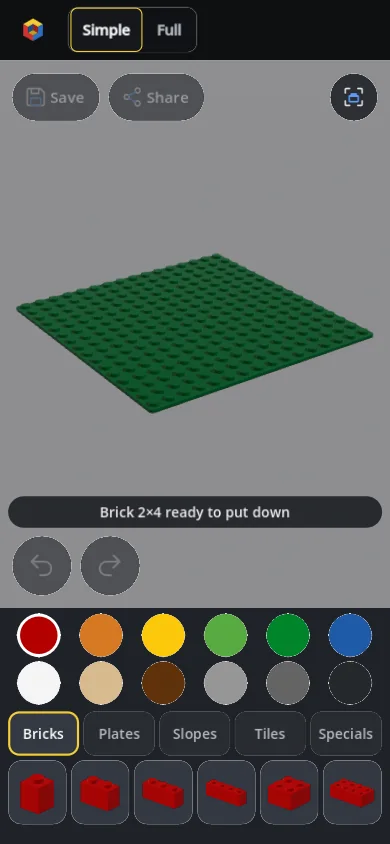
Switch between Simple and Full
Tap Simple or Full in the header, on a phone, a tablet or a computer. Your choice is kept on that device, and Brickworks always starts in Full until you pick Simple. On a phone or a tablet, the studio's welcome on your first visit offers Start in Simple beside New model: one tap and you are building on an empty plate in Simple. Picking Simple while the example car of a first visit is still untouched puts the car away and gives you an empty plate too; a model of yours always stays. Where Full's header has no room for both, on a phone or in a narrow window, Simple mode is in More (on a phone) or in … (on a computer) instead, so Redo and the menus keep their places.
Switching changes only the controls. Every part, your undo steps and your saved file stay as they are, and the view comes back where you left it in Full. Simple starts with nothing selected: what you selected in Full waits for you there, and Simple's buttons only ever change what you pick in Simple.
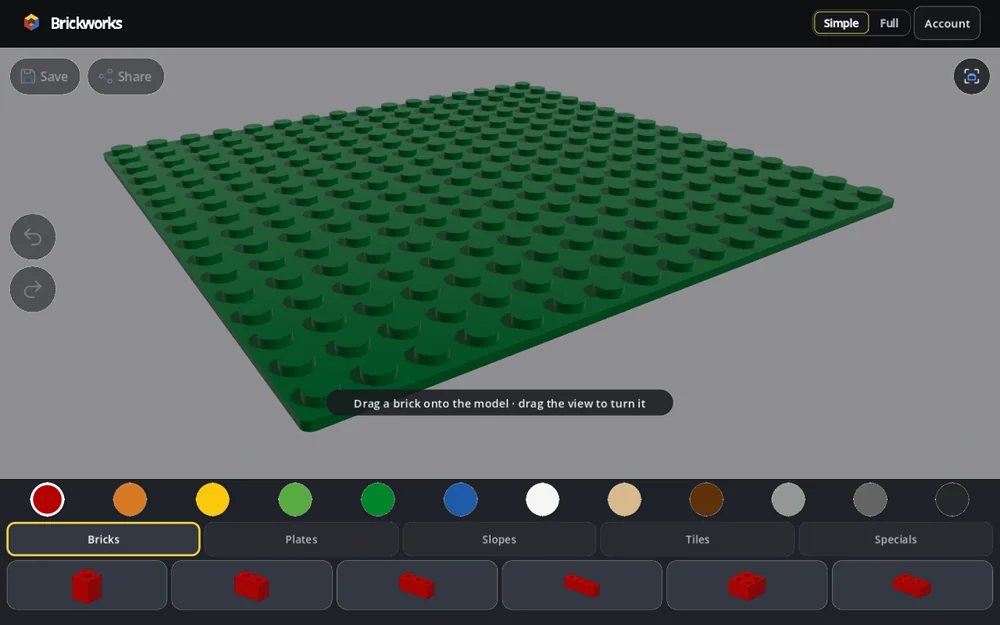
Build with one finger
- Tap a colour.
- Tap a group (Bricks, Plates, Slopes, Tiles or Specials) to see its six parts.
- Drag a part out of the tray onto the model. A ghost shows where it will go, a little above your finger so you can see it, and it snaps to the studs.
- Let go to put it down. Let go over the tray to put nothing down.
You can also tap a part in the tray, then tap the model where one should go. Its see-through ghost shows where it will sit: tap the ghost to put it down, tap somewhere else to show it there instead, or drag the ghost where you want it and let go. With a mouse, the ghost follows the pointer and a click puts it down. Tap the part in the tray again to stop.
A new model in Simple starts on a 16 x 16 plate that fills the view. Parts go on the plate or on other parts: let go on the side of a part and the new one goes down beside it, on whatever is under it, never in the air; let go beside the plate or over the sky and nothing goes down, and Simple says so. If there is no room where you let go, nothing goes down and Simple says that too. Esc lets go of the part you chose in the tray.
Move, turn, copy and delete
Tap a part on the model to select it. Turn, Copy and Delete come up on the right.
- Drag a part to move it. Whatever rests on it comes too, and it snaps to the studs where you let go. Let go off the plate and it goes back where it was. The part you dragged is the one selected after.
- Turn turns it a quarter where it stands. Tapping it twice does the same.
- Copy puts a copy beside it, selected, for you to drag where it goes.
- Delete takes it off. Or drag it onto the red bin that shows while you move a part.
- Tap a colour to paint the selected part.
Holding a finger still on a part does nothing, so a resting thumb never deletes anything.
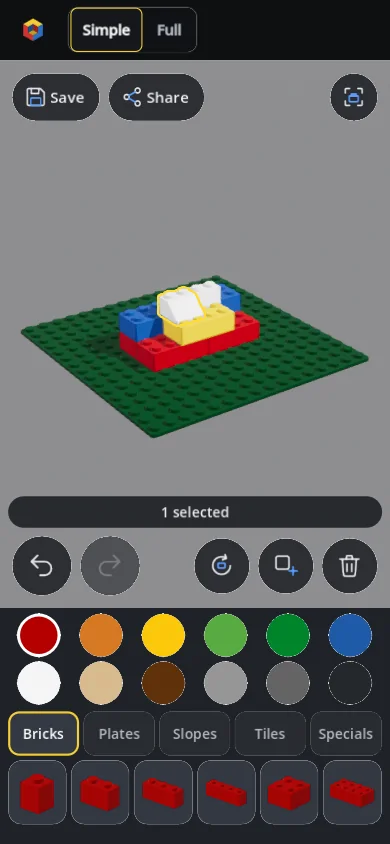
Undo, redo and the view
- Undo and Redo are the big round buttons over the tray on a phone, and up the left side on a tablet or a computer. Tap with two fingers to undo, and with three to redo.
- Drag with two fingers to turn the view, and pinch to zoom. One finger never moves the view, so building never turns it by mistake.
- Fit, under the header, frames the plate and everything on it again. The view never zooms out so far that the studs get too small to aim at.
- With a mouse, the left button is your finger; drag on empty space to turn the view, and use the wheel to zoom.
- With a keyboard, Delete deletes the selected part, Ctrl+Z and Ctrl+Shift+Z undo and redo, and Ctrl+C, Ctrl+V and Ctrl+D copy, paste and duplicate. Full's other keys wait for Full, so none of them opens anything you cannot see.
Save and share
Save and Share are at the top left of the model, across from Fit, as soon as there is a part on the plate.
- Save keeps the model under its name. A new model asks what to call it first, as File › Save does in Full.
- Share opens the same share panel as in Full, over Simple's controls: publish the model for a link anyone can open, or ask the builders about it.
You never have to switch to Full to keep or show what you built.
Models from Full
A model you open or build in Full opens whole in Simple. Simple leaves some parts exactly as they are: parts inside a sub-assembly, parts you locked in Full, parts turned at an angle or tilted, and bendy parts such as hoses. It says once how many there are, and again if you tap one. Switch to Full to change them.
Simple builds its own way whatever Full was set to: every part goes into the model itself, on the studs, upright, and turns a quarter at a time. If you were editing inside a sub-assembly in Full, or had chosen Half or Free snap, another turn step or another tool, Full has them all back as they were when you switch back.
Simple also shows the whole model as it is, every part where it stands: parts you hid in Full are shown, and the cut-away, x-ray, the exploded view, Stress and Stud directions are set aside, so a brick you put down always stands on something you can see. Switch back to Full and each is as you left it: the same parts hidden, the same cut, the sections apart again (or together, if you changed the model). If Full's timeline was on a step, the parts you put down in Simple go into that step, as they would in Full, and Full comes back on that step with them showing.