Instructions and exports
Booklet layout
Print a step from another side or on a page of its own, set the paper, the cover and the colours, and lay a page out by hand.
Brickworks lays the booklet out for you. Here is how to make it yours: a step from another side or on a page of its own, your own paper, cover and colours, or a page laid out by hand. All of it is saved with the model, each change one Undo.
Change how a step is printed
Go to the step on the timeline (B), in Build order or Author's steps, and use its Booklet row, or Build › Booklet page:
- Turn left, Turn right (45°), Higher, Lower (15°), Zoom in and Zoom out change the step's picture; This view draws it from where the window looks now, and Usual view puts the booklet's angle back. The menu has them under Step's view.
- Bigger and Smaller draw the step larger or smaller on its page.
- New page starts a page with the step, and Alone gives it a page of its own. Per page puts at most 1, 2 or 4 steps on a page (Steps a page in the menu).
- Parts list shows or leaves off the step's box of parts. Callout builds the sub-assembly the step puts on in a box beside it, or on pages of its own.
- Outline new outlines every step's new parts in orange.
Press one again to put it back.
Guides and pulled-out parts
On Build › Booklet page, for the step the timeline is on:
- Pull out the selected parts draws them 2 studs out along the way they go in, with a red arrow pointing back in; with nothing selected, all of the step's new parts.
- Colour guide lists the step's colours under its number.
- 1:1 guide draws the selected parts at their real size, to lay a part on the page and check it; it prints true at 100% scale. The booklet gives one to each length of Technic axle or straight beam the first time it is used, and on such a step 1:1 guide takes it away.
- Sub-model preview shows a sub-assembly built on pages of its own finished, on the first of them.
Press one again to put the step back as it was.
Paper, margins and colour
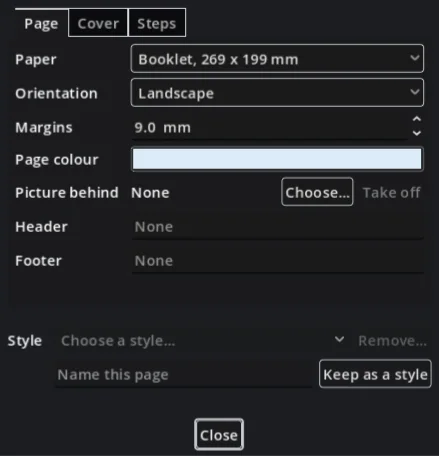
Build › Booklet page › Page setup… (Ctrl+Shift+B) has three tabs. On Page:
- Paper: the booklet's own (269 x 199 mm), A4, US Letter or A5, and Orientation, landscape or portrait. The booklet is laid out again on it.
- Margins, 5 to 30 mm.
- Page colour, or a Picture behind every page.
- Header and Footer: a line of your own words at the head of every page but the cover, and at the foot of every page, such as a copyright line or your name.
The cover and the steps' colours
On the Cover tab:
- Title, across the top: the model's name, unless you type another.
- Under the title, a smaller line.
- Picture: Choose… a picture of your own, shown whole, or The model to draw the finished model again.
- Line, your words over the count of pieces.
On the Steps tab: the Step numbers' height (4 to 20 mm) and Number colour, the size of Parts pictures, the parts box's frame, fill and corners (0 for square), and the New parts outline colour. Usual colours puts the booklet's own back.
Each line of words holds 120 letters; longer is cut, and Brickworks says so.
Use it on another model: type a name under the tabs and press Keep as a style, then on the other model choose it under Style. A style never carries the title or the line under it.
Lay a page out by hand
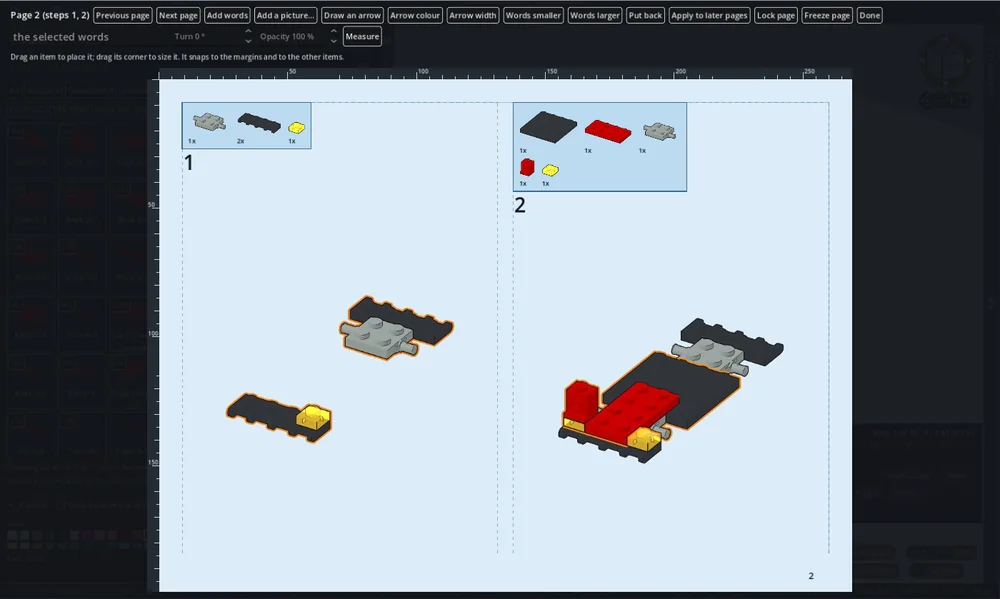
Lay out page… on the timeline's Booklet row (Build › Booklet page › Lay out the page…) puts the step's page in your hands:
- Drag the step's picture, parts list, callout and number where they go, and a corner to size each.
- Add words, Add a picture… or Draw an arrow. Drag the dot in the middle of an arrow's stretch to bend it there; double-click a bend to take it out.
- Turn words or a picture by the knob above them (it settles on every 15°) or in Turn; Opacity fades them.
- Drag a guide out of a ruler: what you drag near it lands on it. Guides are never printed.
- Done goes back to the model. Put back returns the selected item to where the booklet had it, and Previous page and Next page turn a callout's own pages.
When one page is right, Apply to later pages gives every later page with as many steps the same layout, in one Undo. Set Per page first, so the pages have the same number of steps. The PDF and PNG pages print each turn, fade and bend as the page shows it.
Your AI can set all of this over the connector: edit_booklet, page_setup and booklet_page in the tool reference.