The website
Your sets and lists
Mark the sets you own and want in a tap, save gallery models, gather both into lists of your own, share a list by a link or publicly, see an import before it is made, and browse every public list.
Every LEGO® set in the library and every model in the gallery has the same control on its card, and a model's page has it beside Like: Own or Save at a tap, and a chevron beside it for all your lists. Your lists, from the account menu, is where you manage them. Each list is Only you, Anyone with the link or Public: a public one has its own page and is in the gallery's Lists.
The sets you own are My collection: owning a set on the site puts its parts in the app's Build › My collection… at once, and the other way round.
Own and want a set
- On a set's card, press Own. It shows a check at once, and a note at the foot of the page says it is in the sets you own, with Undo.
- On a set's page, the bar under its name has Own, Want (your wishlist) and Add to a list.
- Press the chevron (or Add to a list) for the panel: I own it, with − and + for how many copies, I want it, a box for each of your lists, and New list… to make one with the set already in it. Each box saves as you tick it and says so. On a phone the panel is a sheet at the foot of the screen.
Own and Want are separate: you can own one copy and want another. Signed out, any of these asks you to sign in (a code by email, no password) and then does what you pressed. A card shows ×2 when you own two, and a dot on its chevron when it is in a list of yours.
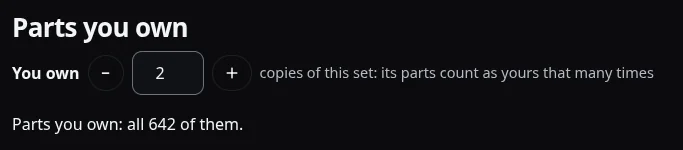
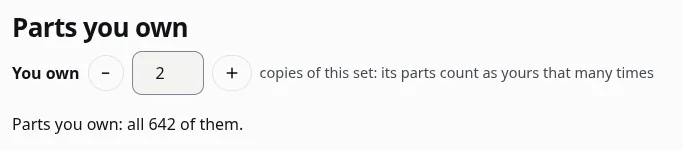
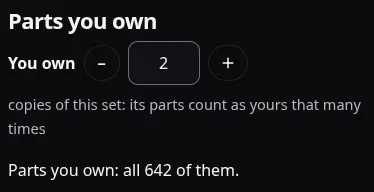
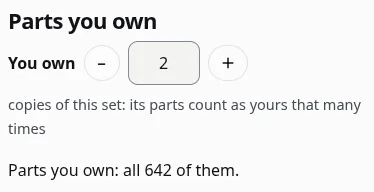
On a set's page you own, Parts you own has You own with − and + round how many copies: type a number from 1 to 99 and press Enter, or 0 to take the set out (with Undo). Each copy counts its parts again, for the gallery's cards and every model's What you're missing. Changed on another device or tab meanwhile, it says so and shows the number there now.
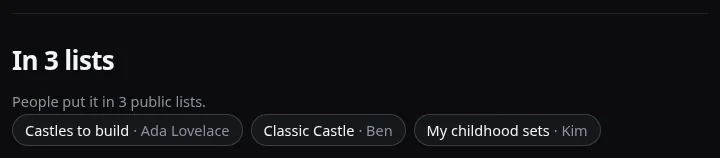
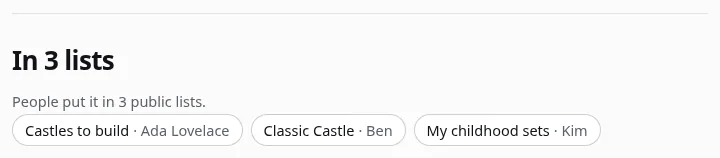
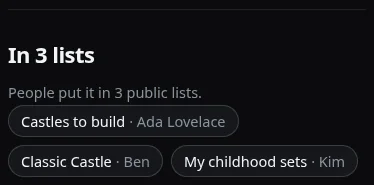
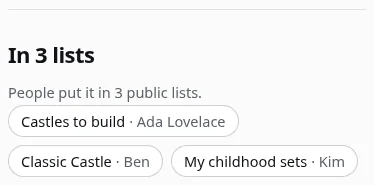
A set's page also says In 3 lists when people put it in public lists: each list by name and whose, a link to it. Wishlists and private lists are never counted.
Save a model
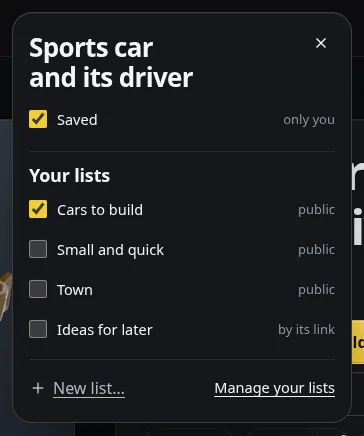
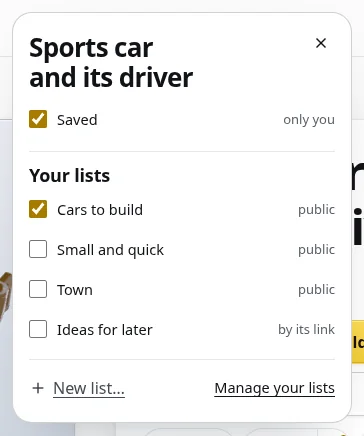
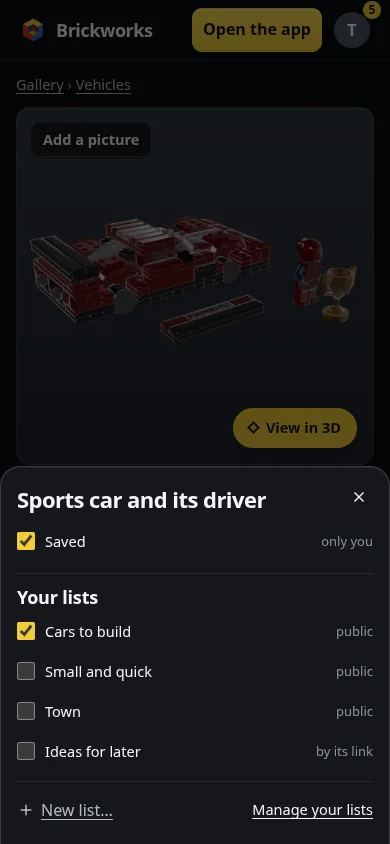
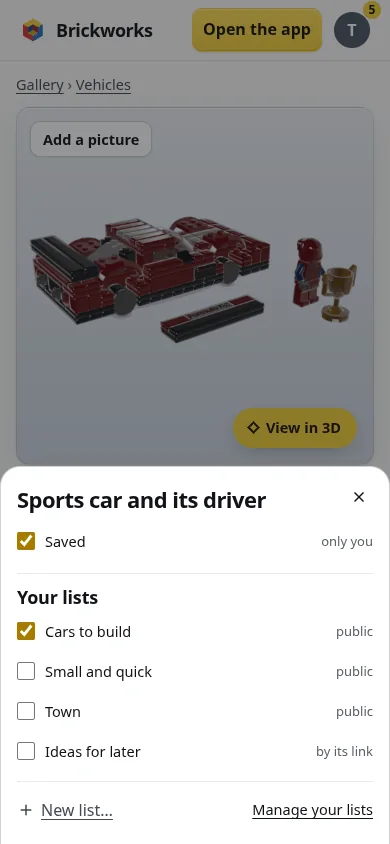
A model's card in the gallery, and a model's own page beside Like, have Save and the same chevron. Save keeps it in Saved at a tap (your own, nobody else sees it), with Undo in the note it shows. The chevron opens the panel: Saved and a box for each of your lists, each saying who sees it (only you, by its link or public), and New list… to make one with the model already in it. It is the same panel and the same Saved, on the card and on the page.
Your lists
Your lists in the account menu (brickworks.diy/lists) has, on the left (a dropdown on a phone), I own, I want, Saved and every list of yours, and New list. A list shows its sets and models as cards, and:
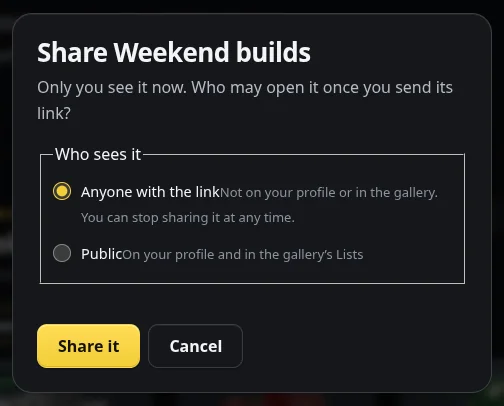
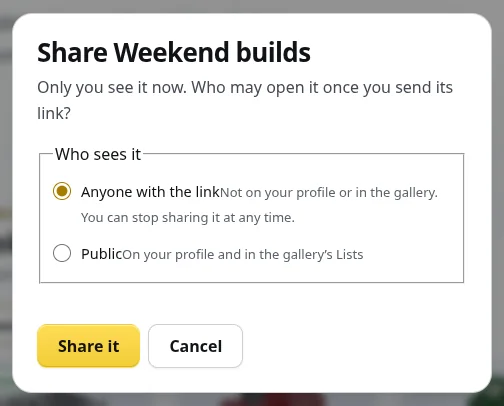
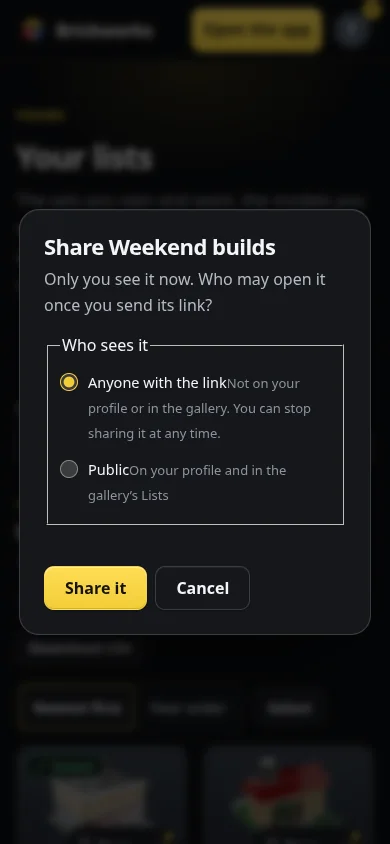
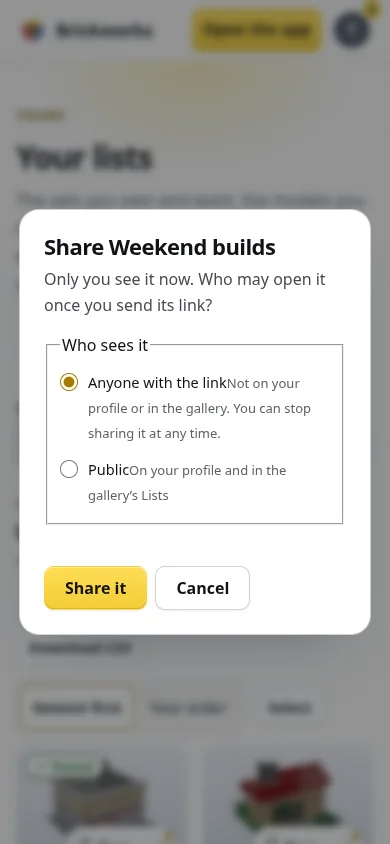
- Share: its link, to copy or send. A list only you see asks first who may open it: Anyone with the link (chosen for you) or Public. See Who sees a list.
- Stop sharing (a list shared by a link): its link opens nothing from then on.
- Edit: its name, its words, Who sees it, its cover (any picture in it), and Delete list (with Undo for a few seconds).
- Newest first or Your order: in your order, drag a card or use its arrows; Undo puts it back.
- Select: tick cards, then Copy to, Move to or Take out.
- Add sets: a Rebrickable CSV, a BrickLink XML or a Brickset CSV file, or set numbers typed in ("10497, 6080, 75192-1"). It shows what it would do first, and adds nothing until you press Add: see Bring sets in. Into I own, a file from a site can replace what that site's file brought in before.
- Download CSV: the sets, in Rebrickable's columns, for Rebrickable or Brickset.
The wishlist (I want) is private until you share it. Share on it chooses Anyone with the link for you: its link tells whoever gives you a present what to give, and it is on no profile and in no directory. Choose Public instead and it is on your profile too (never in the directory).
Who sees a list
Each list of yours is one of three, chosen in Edit or when you first press Share:
- Only you: a new list, until you choose otherwise.
- Anyone with the link: it opens at its own link (
brickworks.diy/c/<id>?link=…) for whoever has it, and nowhere else. It is not on your profile, not in the gallery's Lists, not in the search and not in the sitemap, and search engines are told not to list it. Stop sharing (or Only you in Edit) turns the link off: from the next time anyone opens it, it says there is nothing there. Sharing again makes a new link, so the old one never opens it again. - Public: its page at
/c/<id>is on your profile and in the gallery's Lists, and anyone may follow it.
A list Brickworks took down after a report stays Only you, with everything in it.
Bring sets in
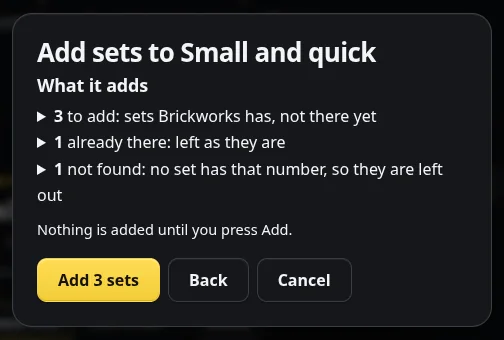
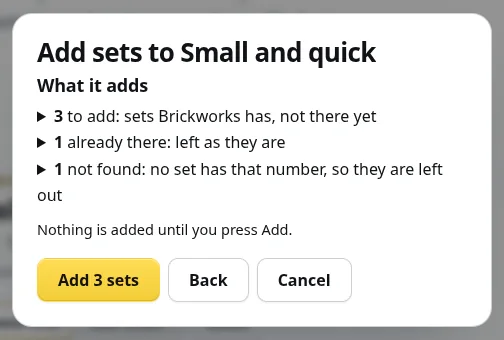
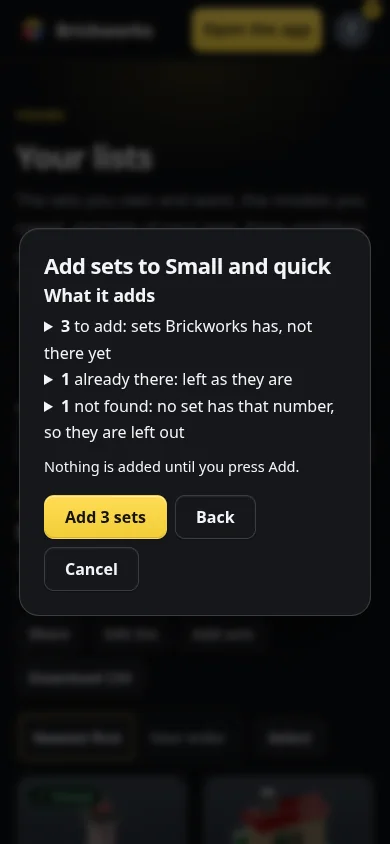
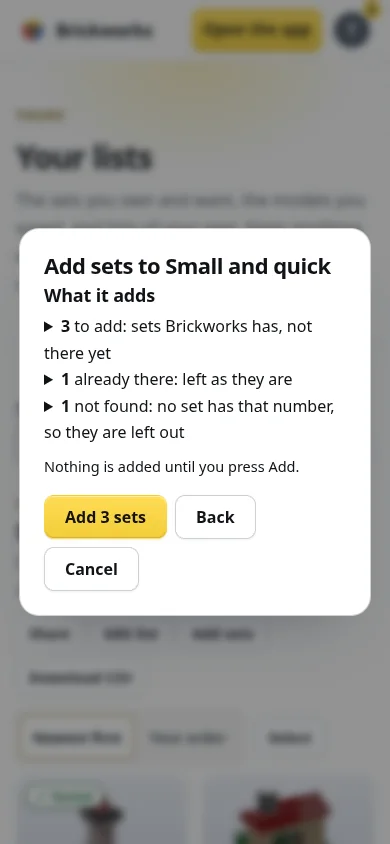
Add sets on I own, I want or a list of yours takes set numbers typed or pasted, or a file: Rebrickable's CSV, BrickLink's XML or Brickset's CSV. Press See what it adds and it shows, before anything is written:
- to add: sets Brickworks has that are not there yet;
- already there: left as they are (into I own with replace, kept as the file counts them);
- not found: numbers no set has (a typing slip, or a set too new for the catalogue), left out;
- into I own, also the loose parts' lots, what a replace takes out, and a Brickset file's wanted sets for your wishlist.
Press Add to bring them in, Back to change what you gave, or Cancel: nothing is written until Add.
The sets you own on your profile
On Your lists › I own, switch on Show on my profile. Your profile then has a Sets tab: how many sets, parts, minifigures and themes, the theme you own most, and every set as a card, with a search and filters by theme, decade and size and an order. A filtered view's address can be shared. Switch it off and the tab is gone.
Save a model from its page
On a model's page, Save beside Like is the card's: press it to keep the model in Saved, or its chevron for your lists (see Save a model). Signed out, it asks you to sign in first, then saves it. Press it again to let it go.
Your account's Saved tab
On your profile, Saved shows the models you saved and your lists. For each list: its name, Public, Save, Delete, Its page and What is in it; who else sees each, by its link too, is on Your lists.
A list's page
Each public list has a page at /c/<id>: its cover, its name, Made by its owner and when it was last added to, its words, its sets and models (the last put in first, or in its owner's order), Follow, Share (the sheet a model's page has, with the list's link) and More (Report it). Following a list puts each model added to it in your feed. A model's page says how many public lists it is in. A list shared by a link has the same page at its link, says it was shared with you by its link, and has no Follow.
The directory
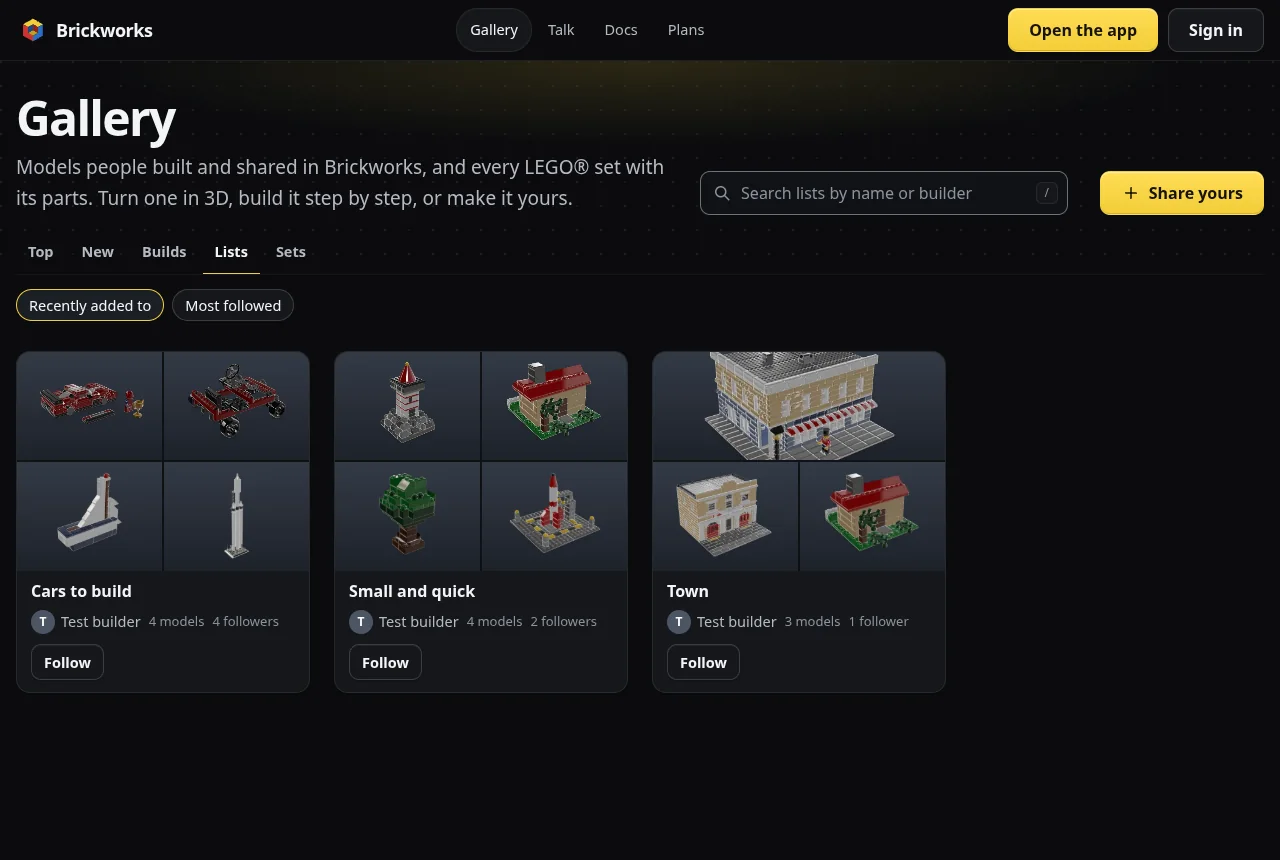
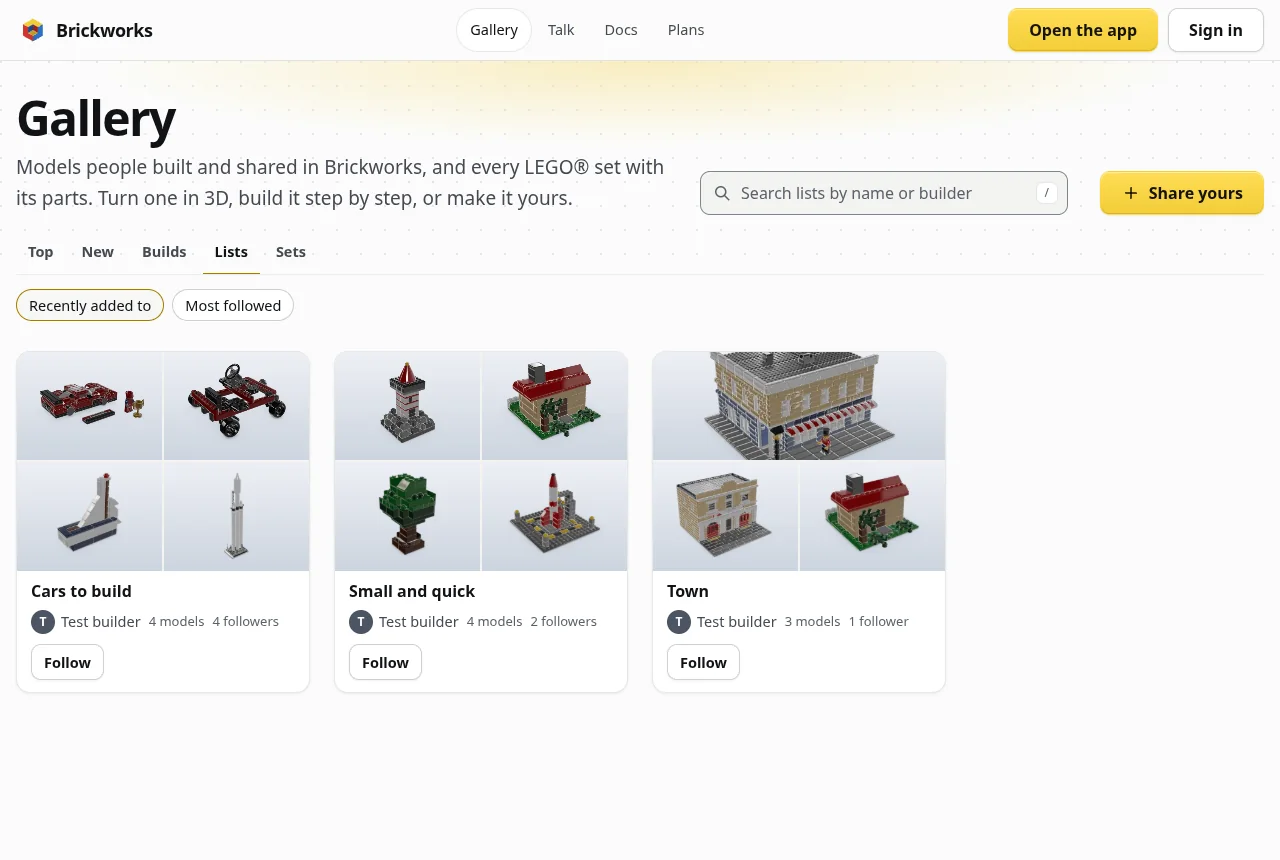
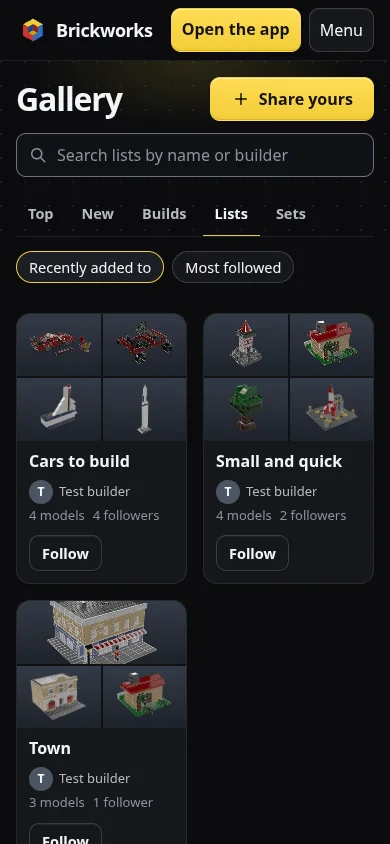
brickworks.diy/gallery-lists, the gallery's Lists tab, lists every public list with at least one set or a model in the gallery (never a wishlist, never one shared only by a link). Each card has its cover (up to four of its models' pictures), its name, its owner, how many models and followers, and Follow. Order them by Recently added to (the default: the one a model went into last first) or Most followed. Search lists by name or builder finds one by its name, its words or its owner. It is linked from the site's footer too. It was called Collections, at /collections: that address, with anything after it, still lands here.