Connect your AI
Connect your AI app
Add Brickworks to your AI app, sign in once, and it builds in your open Brickworks tab while you watch.
Before you start
- Who can add it: Any app that takes a remote MCP server and signs in with OAuth. Checked on 2 November 2026.
- In Brickworks: an account, and the assistant on: Tools › Settings…, Assistant (AI), Show the assistant. Or open the app with it on.
Add Brickworks
In Brickworks, Connect your AI at the foot of the assistant panel (or Tools › Connect your AI…) does this for you: choose Another app under Your AI and press Connect your AI app. It copies Brickworks' address, for any app that takes a remote MCP server. Or copy it here:
https://brickworks.diy/api/mcp- Add a remote MCP server, name it Brickworks, paste the address and sign in with OAuth.
Sign in
Your AI app sends you to Brickworks to sign in, with a code we email you, or straight on if this browser is signed in already. Brickworks asks whether to let it build, by the name the app gives itself. Press Allow.
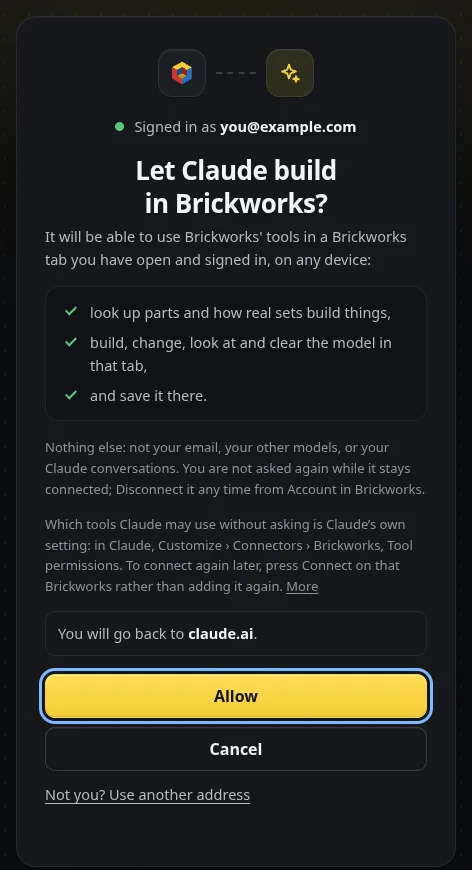
That is once for your AI app: it stays connected, for every Brickworks tab you open, until you disconnect it.
Build
With Brickworks open and signed in, ask your AI app: "build a small red house in Brickworks". It builds in your open tab, on whichever device it is, and you watch every step. Each change it makes is one step of Undo.
With several tabs open, start the chat from the one you want: New chat for this tab, in Account and under Connect your AI, copies the first message, naming the tab, to paste into a new chat in your AI app. More in Several tabs, several chats.
If something is wrong
- Your AI app will not let you add it. Which of its plans can add it is for your AI app to say, and may have changed since we checked. Otherwise another AI app or your own API key designs on any Brickworks plan.
- Added it before? Connect the Brickworks already in your AI app rather than adding it again: adding it again sets up a new one, with its tool permissions to choose again.
- A new Brickworks tool is missing. Start a new chat. Still missing, connect Brickworks again in your AI app.
- It built in the wrong tab. Start each chat from its tab, as above: a chat stays in the tab it chose.
- To stop it, press Disconnect beside it in your Settings, under Assistants. Connecting again asks you to Allow again.
More in Troubleshooting.