Getting started
The web app and the desktop app
Open Brickworks in a browser or install it, sign in, and what each one does that the other does not.
There is one Brickworks, in two places. Everything you build is the same file in both, and your saved models follow your account.
In a browser
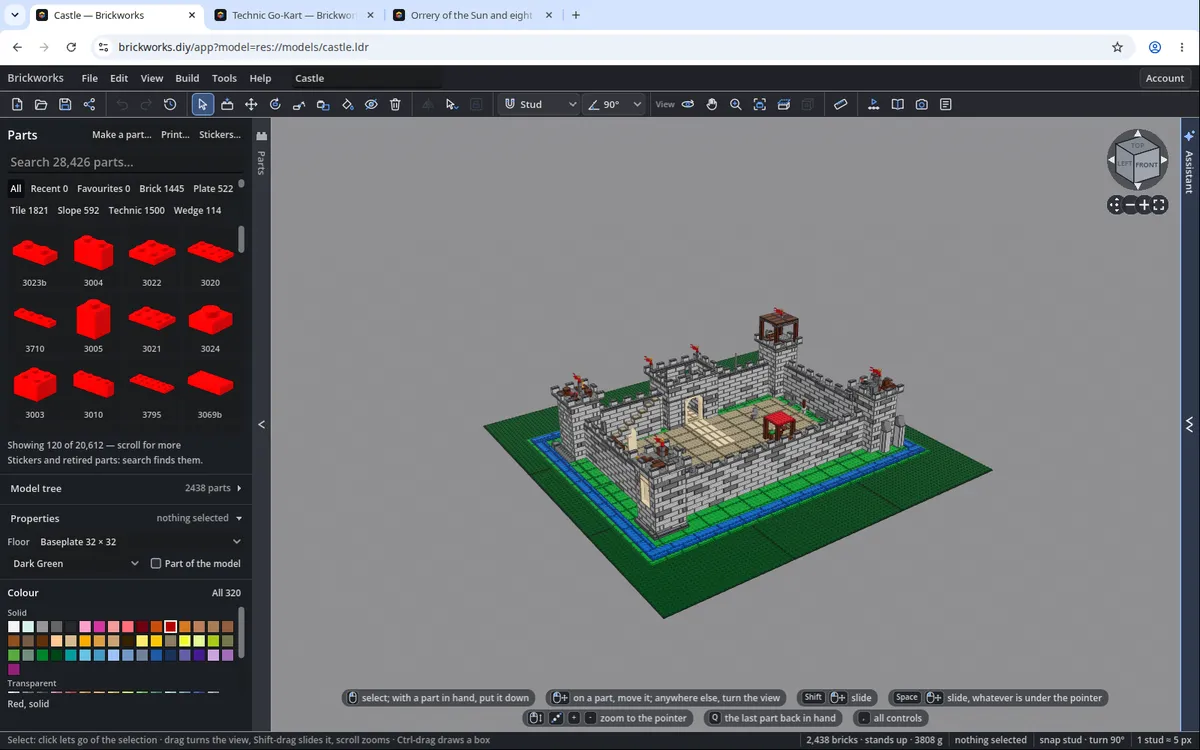
Open brickworks.diy/app. It needs a recent browser on a computer, a tablet or a phone: it runs on WebGL 2 and WebAssembly threads. Nothing is installed.
- On a tablet or a phone the app is laid out for a finger: one row of tools, and the parts, the colours and the rest in panels beside the model or, on a phone, in sheets over it. Tap selects or puts down the part in hand, hold removes, a drag turns the view and two fingers slide and zoom. Along the top, the Brickworks mark opens About, Send feedback, the docs, Account… and Back to brickworks.diy; with the assistant on, its button sits beside the model's name. A browser window as small as a phone gets this layout too, whatever you point with. In the parts sheet the search and the chips scroll with the parts, and the count, Prints and List stay at its foot, on the screen whichever way the phone is held.
- Several models at once: each browser tab is its own model. File › New tab opens another. A tab can be opened by its link,
/app?tab=<id>: if that tab's model is kept in this browser it opens; if it is already open in another tab, that tab says it is the one. - A newer build: when Brickworks is updated while a tab is open, the tab says Brickworks has been updated. Press Reload when it suits you; the model in the tab comes back as it was. Until you do, that tab saves nothing to your saved models, so it can never write over what a tab on the new version keeps.
When the same model is open in two tabs and you save it in one, the other offers Reload it.
On the desktop
Download it from the download page, for Linux, macOS and Windows. The desktop app carries every part on disk and builds with no network at all. It is free, like the web app (Plans).
- File › New window (Ctrl+Shift+N) opens a second window with its own model.
- File choosers open where you last used one of their kind, or else Pictures, Documents or Downloads, and every export asks where to save.
- While it loads, the Brickworks mark shows on the app's dark face.
- Brickworks › About Brickworks names every piece of other people's work in Brickworks with its terms, and opens each licence in full.
From the command line
The desktop app also runs from a terminal. The program is ./brickworks.x86_64 on Linux, Brickworks.app/Contents/MacOS/Brickworks on a Mac and Brickworks.console.exe on Windows; what it is asked comes after --:
./brickworks.x86_64 --headless -- --about                         # which build this is
./brickworks.x86_64 --headless -- --model=castle.ldr --out=copy.ldr   # open a model, write it out
./brickworks.x86_64 -- --view=<id>                                 # open a shared model to look at
./brickworks.x86_64 -- --together=<secret>                         # join a Build together session
./brickworks.x86_64 -- --mcp                                       # open the local MCP port
With --mcp the window listens on 127.0.0.1:8787 (--mcp=PORT for a second window), one JSON command a line: that is how Claude Code can drive a desktop window directly. Your models and settings are kept in the app's own folder (on Windows, %APPDATA%\Godot\app_userdata\Brickworks\).
Signing in
The first time it opens, the app asks you to sign in, as everyone is. There is no password: either a six-digit code sent to your email, or Sign in with orangecheck, which opens its own window and accepts a Bitcoin wallet, email, Google or GitHub. A new account is asked its month and year of birth once.
See Your account and privacy for what each keeps.
Where your models are
Saved models are kept in your browser (on your computer in the desktop app) and privately with your account, so File › Open shows them wherever you sign in. Nobody sees a model until you share it. See Saving, opening and files.