Building
Moving and changing parts
Copy and lay out patterns, move and turn what is down, mirror, split and merge, lock and hide, make sub-assemblies, undo, and measure.
Everything here works on the selection: click a part, or see Selecting and editing to take many.
Copy, paste and duplicate
Select, then Ctrl+C and Ctrl+V; Ctrl+X cuts. The pasted copy is in hand: a click puts it down, R turns it and Esc puts it away. Ctrl+D (Edit › Duplicate) puts the copy down at once beside the original, seated on what it stood on and selected, so a drag takes it where it goes; Ctrl+D again puts another beside that, and one Ctrl+Z takes a copy back. With the Clone tool a click holds a copy, and another stays in hand for the next, so five window bays are five clicks. Ctrl-drag on a part copies it straight off.
Lay out copies in a pattern
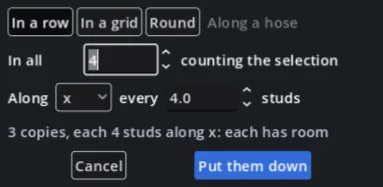
A fence, a colonnade, a round tower or a wheel's spokes are copies laid out at once.
- Straight after a copy: press Ctrl+D, or put a Clone copy down one step along, then type
11xand Enter: it is one of 11 in a row, each a step apart./4puts three more between the copy and its original. One Ctrl+Z takes them all back. - Edit › Pattern… (Ctrl+Shift+D) copies the selection In a row, In a grid of columns, rows and levels, Round what it stands on or hangs from, or Along a hose. In all counts the selection: 16 is a ring of sixteen.
The copies are drawn as you type. One with no room is red and says what is in its way, and nothing goes down until they all fit.
Lift, nudge and turn
- Drag a part with the Select tool and it goes where you let go, with what rests on it: the bricks stacked on top come along, each where it was. A part held by something that stays, such as a plate across to a brick beside, stays with all that is on it, and what the part stands on never comes. Hold Shift as you drag to move it alone; let go of Shift to take the rest up again. One Ctrl+Z puts it all back. A finger's drag carries the same.
- X lifts the selection: it follows the pointer, a click puts it down and Esc puts it back.
- The arrow keys or W A S D nudge it a Snap step; Page Up and Page Down raise and lower it.
- R turns it where it stands. With no room there, the parts in the way light up and it comes into hand turned: click where it fits, or Esc.
Exact positions and angles are typed in Properties.
Drag rings and arrows
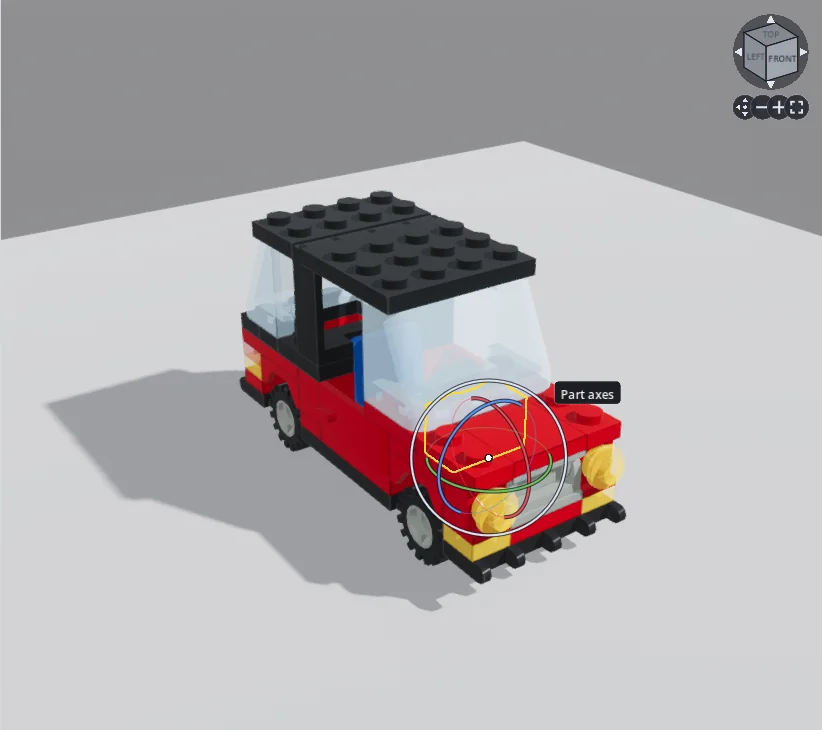
The Move, Rotate and Hinge tools on the toolbar work with the mouse or a finger. With Rotate, a click on a part puts three rings on it; with Move, three arrows. Drag a ring to turn the selection, or an arrow to slide it. Hinge swings a part on its hinge, clip or turntable.
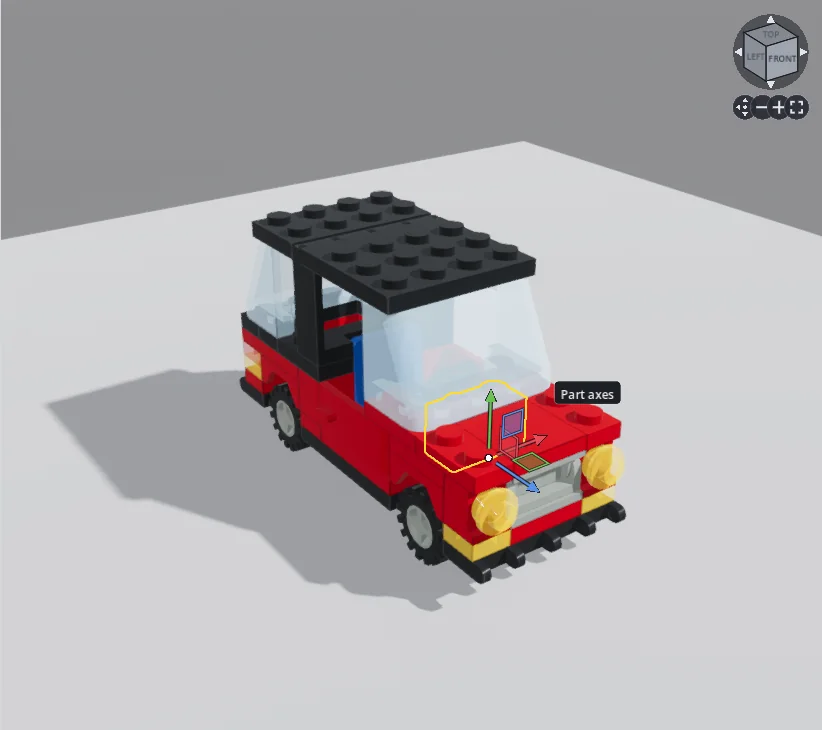
- The panes between the arrows slide it on two axes. The pale outer ring turns it about the view; a drag inside the rings rolls it freely.
- The tag beside them says whose axes they are, Part axes, Model axes or View axes; click it for the next. Alt-click a point to turn about it.
- A ring snaps to quarter turns near its middle, to the Turn step on it, and finer further out. An arrow snaps to the Snap step.
- Type a number as you drag to make it exact: 23.58 degrees, 3 studs, 2p plates.
- A drag stops where the room ends. Esc or a right-click puts it back.
- On a phone or a tablet they are a fingertip wide: tap a part, then drag a ring, an arrow or a pane with one finger, and tap the tag for the next axes. The view stays still under that finger, even if you rest it on the handle first. A second finger puts the drag back and moves the view instead.
Mirror, replace and paint
- Edit › Mirror (Shift+M) mirrors the selection, swapping each part for its left- or right-handed twin where there is one.
- Edit › Replace with the part in hand (Alt+R) swaps every selected part for the one you hold, each where it was. A part inside a sub-model used more than once changes in every copy, as an edit there always does, and the status bar says how many more ("swapped 1 part for Minifig Helmet Castle with Neck Protector — 3 parts more in its other copies"). To change one copy alone, use Build › Make this copy unique first.
- Edit › Find and replace… (Ctrl+Shift+H) finds a part, a colour, or a part in a colour everywhere in the model, inside every sub-model too, in the sub-model you are in and its copies, or in the selection. It lists where they are, with counts and copies (click a row to select them), and every colour the part comes in, flagged when there is more than one. Opened with parts selected, it finds what they share: parts selected by their colour find that colour on any part, so one Replace recolours them all. Its colour lists show each colour's swatch, the model's most used first, and Replace with lists the colours made now before the rest. Replace with another part, another colour or both: under Replace with it names the part it will put in ("Puts in: Brick 1 x 2 (3004)"), and it says first that every copy of a sub-model changes with it ("Changes all 4 copies of Wing"), and in how many places the new part won't sit the same (another footprint or other connection points), would hold onto nothing, or has no room and stays as it is. Copies stay copies: where one copy of a sub-model has no room for the new part, or the part is locked in one, every copy keeps it, and the bar says so ("Wing has no room in 1 of its 4 copies, so all 4 stay"). The whole replace is one undo step, and a copy placed by a mirror gets the other hand of a handed part. Your Claude does the same with replace_parts, in one call.
- C paints the selection in the current colour; the Paint tool paints each part you click.
Finish the surfaces
- Edit › Finish the surfaces… finishes the model the way a set designer would, and shows what it would lay before anything changes. It lists tiles where a top should be smooth, slopes where a top steps up, rounded edges along a body's hard top edge, and smooth sides. Each kind gets a count and is drawn as a ghost on the model. Untick a kind to leave it out. Smooth sides start unticked, since they swap a side's own bricks for others, and so does the open ground, kept for figures to stand on.
- Lay puts it all in as one undo step, and Undo puts the file back exactly as it was. A part with a stud that something else sits on is never tiled, and nothing is laid where it would float or overlap. Where a place can't be laid as the model now stands, the bar says why.
- With parts selected, it finishes only those.
- On a big model the reading is spread over frames, with the status bar saying so.
- Your Claude reaches the same pass with review_model and settle_surface.
Split and merge
- Alt+S splits the selection: a plate, brick or tile into 1 × 1s, a 1 × 1 brick into three plates, a slope into 1-wide slopes.
- Alt+M merges the selected plates, bricks and tiles of each colour into the fewest real parts made in it: three stacked plates become a brick.
What was attached stays attached. When no real part fits, the status bar says so and nothing changes.
Lock and hide
L locks the selection so nothing moves it by accident; Shift+L unlocks everything. Ctrl+H hides the selection, Shift+H shows only it, and Alt+H shows everything again.
Group parts into a sub-assembly
Select some parts and press Ctrl+G (Build › Make a sub-assembly…) to group and name them. A click then takes it whole; Enter or a double-click edits inside it and Esc leaves. F2 renames it and Ungroup (Ctrl+Shift+G) takes it apart. Its Ctrl+D copies follow it, change one and they all change, until Build › Make this copy unique. Search the parts bin for its name and it comes first, as a row of its own: click it and a copy is in hand, each click puts one down.
A change is made in every copy or in none. If a part it would change is locked in one copy, or another copy has no room for it (a part put there by hand would have none), nothing changes and the bar says why: "Locked in one copy of Sill: Plate 1 x 2. Unlock it, or use Build › Make this copy unique", or "No room in Sill (copy 2): Plate 1 x 1 is in the way there". Unlock the part, move what is in the way, or use Build › Make this copy unique to change that copy alone. A copy's own parts are never in its way, and nor is a part of the model it already stood in (sets put parts through each other), unless the change would push it in deeper. While you edit inside a sub-assembly, or move one copy's part (dragged, or lifted with X), the ghost of what you hold (a part, a paste, a part you drag) turns red where another copy has no room for it, and the bar says why before you click.
Change a part in one copy and the others follow. If you pick a part and its twin in another copy together (Same part and colour, Alt+A, takes every copy's) and move them so the two copies would no longer match, say both a stud to the right where one copy is the other's mirror image, nothing changes: the ghost turns red and the bar says "Moved in two copies of Wing at once, and differently: move it in one and the others follow, or use Build › Make this copy unique". A move both copies take alike goes through, such as both a stud back from a mirror image side by side.
Build in sections
Big models are built in sections, as big sets are. Build › Suggest sections proposes them, and the model tree's Accept, Merge, Split and Evaluate shape them. Y breaks the selected section out to work on alone, and back; Shift+Y explodes them all.
Undo
Ctrl+Z undoes and Ctrl+Shift+Z redoes. History on the toolbar, or Edit › History, lists the steps to go back to. Whatever an AI puts down is one undo step too.
Measure
Press U and click two points: the distance in studs, plates and millimetres, over the model and in the status line. A point near a pin, hole, axle, bar or hinge goes on its middle, and near a stud on the middle of its top; with both on one connector it gives the angle between them too, to a tenth of a degree. A stud is 8 mm across, a plate 3.2 mm tall and a brick 9.6 mm.
On a phone or a tablet, Measure is in More › Tools: tap two points. Each tap goes on the stud or connector nearest your fingertip, so it reads what a click right on it would. Holding your finger down doesn't pick up a part while the ruler is out.